Google Search Console is a free tool that helps you see how your website performs on Google. In this guide, you’ll learn how to use its key features to track results, find issues, and improve your website’s SEO.
What’s Included in This Article
- Why Google Search Console matters for your business
- How to set up a Google Search Console account
- How to use its main reports and tools
- How to monitor website performance and find SEO issues
- Key tips for getting more value from your data
Why Use Google Search Console?
Google Search Console (GSC) is a free tool from Google that helps you understand how your website performs in Google Search. It shows which searches bring people to your site, which pages appear in results and whether Google has trouble finding or reading your content.
For business owners, this information can help you make better choices about your website and SEO strategy.
For example, you may find that people search for your services but rarely click on your website. This could mean your page title or description needs work. You may also find that an important service page is not indexed, which means it may not appear in Google Search.
Google Search Console can help you:
- Track search performance: See how many people view and click on your website in Google Search.
- Find SEO issues: Check for problems that may stop pages from appearing in search results.
- Understand your audience: Discover the words people use when looking for your products or services.
- Monitor website health: Review reports about page experience, security and other technical issues.
- Measure progress: Compare results over time to see how your website performs after SEO changes.
Google Search Console does not directly improve your rankings. Instead, it gives you data that can help you identify what needs attention.
It also works well alongside Google Analytics. Search Console focuses on how people find your website through Google Search, while Google Analytics helps you understand what visitors do after they arrive.
Setting Up an Account
Setting up Google Search Console is simple. You do not need advanced technical skills, but you must verify that you own or manage the website.
Follow these steps to get started.
Step 1: Open Google Search Console
Visit Google Search Console and sign in with your Google account.
Step 2: Add your website
Select the option to add a property. You can choose between two main types:
- Domain: Covers all subdomains and URL versions of your domain, including HTTP and HTTPS. Verification usually requires adding a DNS record through your domain provider.
- URL prefix: Covers only the exact URL prefix you enter. Verification options may include an HTML file, an HTML tag, Google Analytics or Google Tag Manager, depending on your setup.
A Domain property is often useful if you want to monitor your entire website.
Step 3: Verify ownership
Follow Google’s instructions to prove that you own or manage the website. If you choose Domain verification, you will usually need to add a DNS record to your domain settings.
If you use WordPress, a website developer may be able to help you complete this step.
Step 4: Submit your sitemap
A sitemap lists important URLs on your website and helps Google discover them. In Search Console, open the Sitemaps report, enter your sitemap URL and submit it.
Many WordPress websites have a sitemap generated by their SEO plugin or website system. Check that the sitemap exists and contains the correct URLs before submitting it.
Step 5: Check your website data
Once your property is set up, Google will begin collecting and displaying data. Some reports may take time to populate, so do not worry if you cannot see everything straight away.
You can now start monitoring your website’s search performance and checking for issues.
Features in Google Search Console
Google Search Console has several reports and tools. Some are useful for everyday monitoring, while others help you investigate specific SEO problems.
The available reports may vary depending on your website, its features and the data Google has collected.
Performance Tab
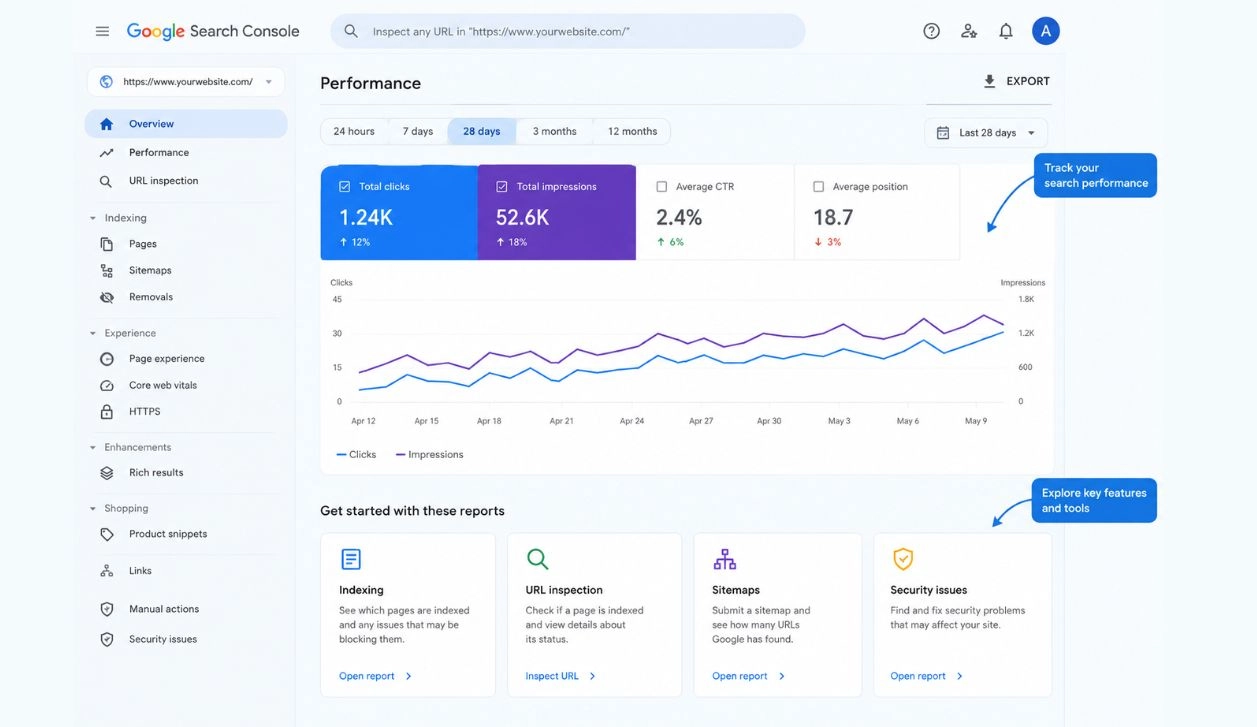
The Performance report shows how your website performs in Google Search. It helps you understand which searches bring visitors to your pages and how often people click on your results.
The main metrics are:
- Total clicks: The number of clicks your website receives from Google Search.
- Total impressions: How often your website appears in search results.
- Average click-through rate (CTR): The percentage of impressions that lead to clicks.
- Average position: The average position of your highest-ranking result across the recorded searches.
You can also view data by search query, page, country, device and other available filters.
For example, a Cyprus web design company may find that its website receives impressions for searches such as “web design Cyprus” but gets few clicks. This could be a reason to review the page title, meta description and how well the page matches what people are looking for.
You can also compare date ranges to check whether clicks and impressions have increased or fallen.
Tip: Focus on the pages and search terms that matter most to your business. Look for opportunities to improve existing content rather than making changes based on one day’s results.
Indexing
The Indexing reports show which pages Google has found and whether they have been added to its index.
A page generally needs to be indexed before it can appear in Google Search. However, indexing does not guarantee that it will rank well or appear for every relevant search.
The Page Indexing report helps you understand why some pages are indexed while others are not. Possible reasons include redirects, duplicate content, pages that return errors and pages that are blocked from indexing.
For example, if your website has a new service page that is not appearing in Google, this report can help you investigate why.
Not every excluded page is a problem. Login pages, duplicate URLs and pages you do not want in search results may be excluded for a valid reason.
Tip: Review important service pages, product pages and blog posts first. If a useful page is not indexed, investigate the reason before making changes.
URL Inspection
The URL Inspection tool lets you check an individual page on your website.
Enter a URL into the inspection bar at the top of Search Console. Google will show information about the page’s indexing status and other details it has recorded.
You can use this tool to:
- Check whether a page is indexed.
- Find out whether Google can access the page.
- Investigate some crawling and indexing problems.
- Test a live page after making changes.
- Request indexing for a new or updated page.
For example, if you publish a new blog post, you can inspect its URL to check whether Google has found it. If the page is eligible for indexing, you can request indexing to ask Google to process it.
However, requesting indexing does not guarantee that Google will index the page immediately or include it in search results.
Tip: Use URL Inspection when you publish important pages or fix technical SEO problems. Avoid repeatedly requesting indexing for pages that have not changed.
Experience
The Experience section helps you understand aspects of your website that affect how people use it.
Depending on the available reports, you may find information about Core Web Vitals and HTTPS.
Core Web Vitals measure key aspects of page experience, including loading performance, responsiveness and visual stability. These factors can affect how easy your website is to use.
For example, if a service page loads slowly on mobile devices, visitors may leave before they contact your business. Improving image sizes, reducing unnecessary scripts and reviewing your website’s code may help.
HTTPS indicates whether your website uses a secure connection. HTTPS helps protect data sent between a visitor’s browser and your website.
Keep in mind that Search Console’s experience reports do not measure every aspect of user experience. A website should also have clear navigation, readable content, accessible design and simple ways for customers to contact you.
Tip: Check your website on both mobile and desktop devices. If technical issues are difficult to resolve, a web development team can help investigate them.
Enhancements: Rich Results
Structured data is code that helps Google understand certain information on a page. When implemented correctly and supported by Google, it may make a page eligible for a rich result.
Rich results can display extra information in search results, depending on the type of content and Google’s systems.
For example, eligible product pages may show product details, while certain other supported content types may qualify for additional search features.
Search Console may show reports for supported structured data types found on your website. These reports can identify errors or warnings that may affect eligibility.
Not every website will have an Enhancements section, and not every type of structured data qualifies for a rich result.
Tip: If your website uses structured data, review any reported errors. Ask your developer to check the code if you are unsure how to fix them.
Sitemaps
A sitemap helps Google discover important pages on your website. It is particularly useful for larger websites or sites with new pages that may not have many internal links.
In the Sitemaps report, you can submit a sitemap and check whether Google was able to read it.
The report may show the sitemap’s status, the date it was last read and the number of URLs discovered.
If a sitemap cannot be processed, check that the URL is correct and that the file is accessible. Also make sure it contains the pages you want Google to find.
Submitting a sitemap does not guarantee that every listed page will be crawled or indexed. Google uses it as a guide.
Tip: Keep your sitemap up to date as you add or remove important pages. If you use WordPress, check whether your SEO plugin or website setup already creates one.
Shopping
The Shopping section is relevant to eligible online stores. Depending on your website and the reports available, it may provide information about product listings and their eligibility for Google’s shopping-related experiences.
This can help e-commerce businesses identify issues with product information or supported structured data.
For example, an online shop may need to review missing or incorrect product details if Google reports a problem with its product data.
Not every website will have a Shopping section. Its availability depends on the site’s content, setup and the reports Google supports for it.
Tip: If you run an online store, keep product names, prices, availability and other details accurate. Check that your product pages and structured data match the information customers see on your website.
Links
The Links report shows information about links connected to your website.
It includes external links from other websites, internal links between pages on your own site and examples of the text used in links.
External links can help people discover your business and may support SEO when they come from relevant, trustworthy websites. Internal links help visitors and search engines find related pages on your site.
For example, a blog post about website design could link to your web design service page. This helps readers find the next step and makes the relationship between the pages clearer.
The report can also help you identify important pages that receive few internal links.
However, the report is not a complete list of every link on the internet, and the number of links alone does not tell you whether your SEO is successful.
Tip: Make sure your important service pages are easy to reach from relevant pages. Use clear link text that tells visitors what to expect when they click.
Manual Actions
The Manual Actions report shows whether Google’s reviewers have applied a manual action to your website because of a violation of its spam policies.
A manual action can affect how some or all of your website appears in Google Search.
If the report shows no issues, you can continue monitoring your website as normal. If it lists a problem, read the details carefully and identify the affected pages.
You may need to remove harmful content, correct manipulative SEO practices or fix other policy violations before requesting a review.
Tip: Avoid shortcuts such as buying links to manipulate rankings or publishing large amounts of low-quality content. Focus on useful content and sound SEO practices.
Security Issues
The Security Issues report alerts you to certain security problems Google has detected on your website.
These may include hacked content, harmful downloads or other issues that could put visitors at risk.
Security problems can damage customer trust and may affect how people access your website through Google.
If an issue appears, review Google’s guidance and contact your hosting provider or web developer. You may need to remove harmful code, secure compromised accounts and update affected software.
After fixing the issue, follow Google’s instructions to request a review if one is available.
Tip: Keep your website software and plugins updated, use strong passwords and maintain regular backups. Good website maintenance can help reduce security risks.
Conclusion
Learning how to use Google Search Console is a useful first step towards better SEO. It helps you understand how Google sees your website, which pages attract attention and where problems may need to be fixed.
However, finding an issue is only the first step. You still need to understand what the data means and decide which changes will have the greatest value for your business.
If you run a business in Cyprus and want to improve your website’s visibility, a clear SEO strategy can help you turn these insights into action. From technical checks to content improvements, the right approach can make your website easier for search engines to understand and more useful to your customers.
Need help improving your website’s SEO? Absolute Websites provides SEO services in Cyprus to help businesses improve their online presence. Explore our SEO services or contact our team to discuss your website’s needs.
Key Takeaways
Google Search Console gives business owners a clearer view of how their websites perform in Google Search. It can help you spot problems, understand search demand and find ways to improve your online presence.
Remember these key points:
- Google Search Console is free to use.
- Verify your website and submit a sitemap to help Google discover your pages.
- Use the Performance report to track clicks, impressions and search queries.
- Check Indexing and URL Inspection when important pages are missing from search results.
- Review experience, rich result and security reports when they are available.
- Use the Links report to understand internal links and links from other websites.
- Check your reports regularly, especially after important website updates.
- Treat Search Console as a source of data, not a guarantee of higher rankings.